

Disclosure: Some links on this page are affiliate links. If you buy through them, we may earn a commission at no extra cost to you. As an Amazon Associate I earn from qualifying purchases. Read our full disclosure.
Your mouse cursor is frozen, or it won’t move at all. Maybe it moves but clicks don’t register, or the pointer jumps around the screen. When your mouse stops working on a Mac, you’re stuck: you can’t click menus, you can’t select files, and even basic navigation becomes a frustrating exercise in keyboard shortcuts.
Before you assume the hardware has failed or start digging through system settings, a quick browser-based test will tell you whether the problem is the mouse itself or something in macOS.
Test it with our free Mouse Tester
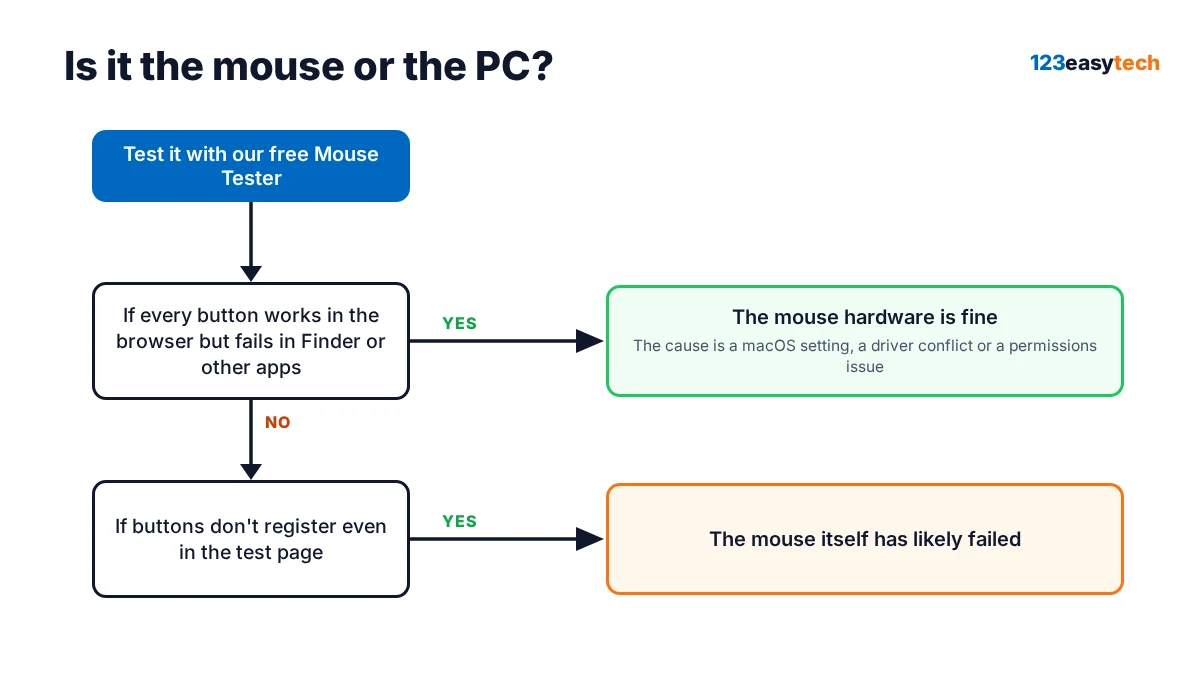
Open the Mouse Tester in Safari or any browser on your Mac. The tool runs entirely in the browser and checks every button, the scroll wheel and the pointer movement without installing anything.
- Click each button—left, right, middle (press the wheel down) and both side buttons if your mouse has them. Each one should light up green when it registers.
- Scroll the wheel up and down. Watch the counters: if “Up” increases while you scroll down, or vice versa, the encoder inside the wheel is skipping.
- Move the mouse quickly in circles inside the test box and watch the polling rate number.
- If a button never lights up, the problem is that button, the driver or a remapping setting—not the page.
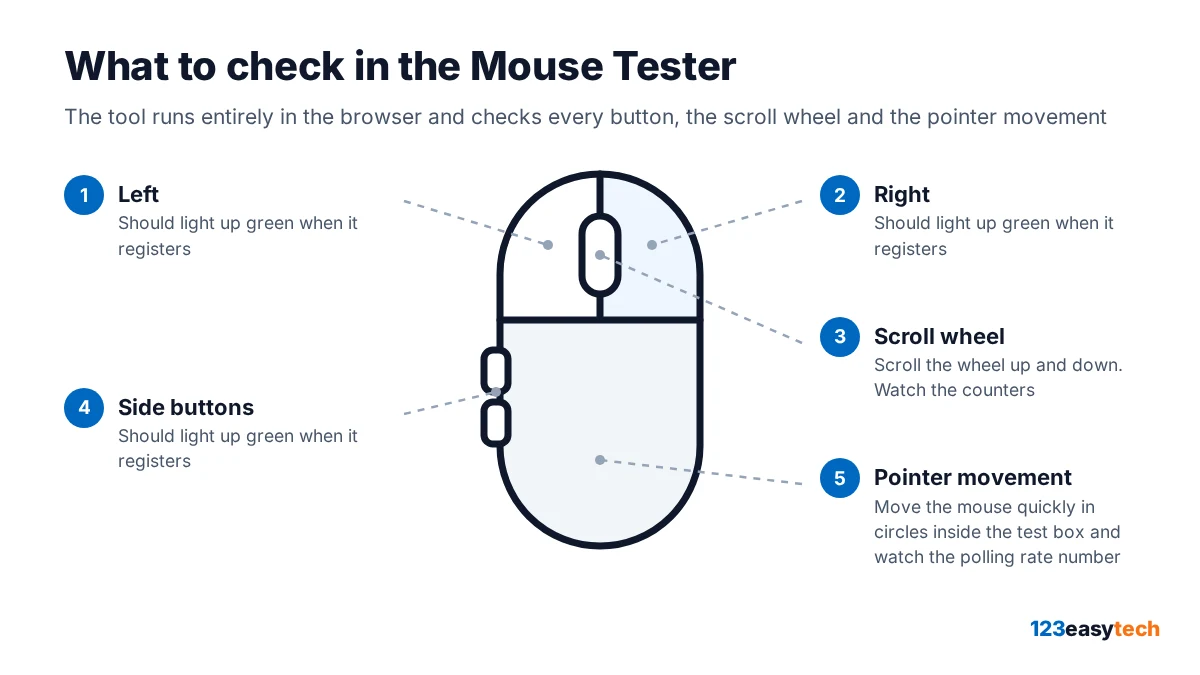
If every button works in the browser but fails in Finder or other apps, the mouse hardware is fine and the cause is a macOS setting, a driver conflict or a permissions issue. If buttons don’t register even in the test page, and you’ve tried a different USB port or re-paired Bluetooth, the mouse itself has likely failed.
Why it happens
A mouse can stop working on a Mac for several reasons. Wireless mice often fail due to Bluetooth interference, low battery or a lost pairing—the same radio-frequency issues that affect any wireless peripheral. Wired mice can stop responding if the cable is damaged, if the USB port has failed or if the connection is going through a faulty hub. Driver conflicts are common when third-party mouse software—especially older versions from Logitech, Razer or other manufacturers—hasn’t been updated for the current macOS release. macOS permissions introduced in recent versions can also block input devices if the app controlling the mouse doesn’t have the right access. Accessibility settings that remap buttons or adjust tracking speed sometimes get changed accidentally, and a corrupted preference file can cause the system to ignore the mouse entirely.
How to fix it
1. Check the connection and power
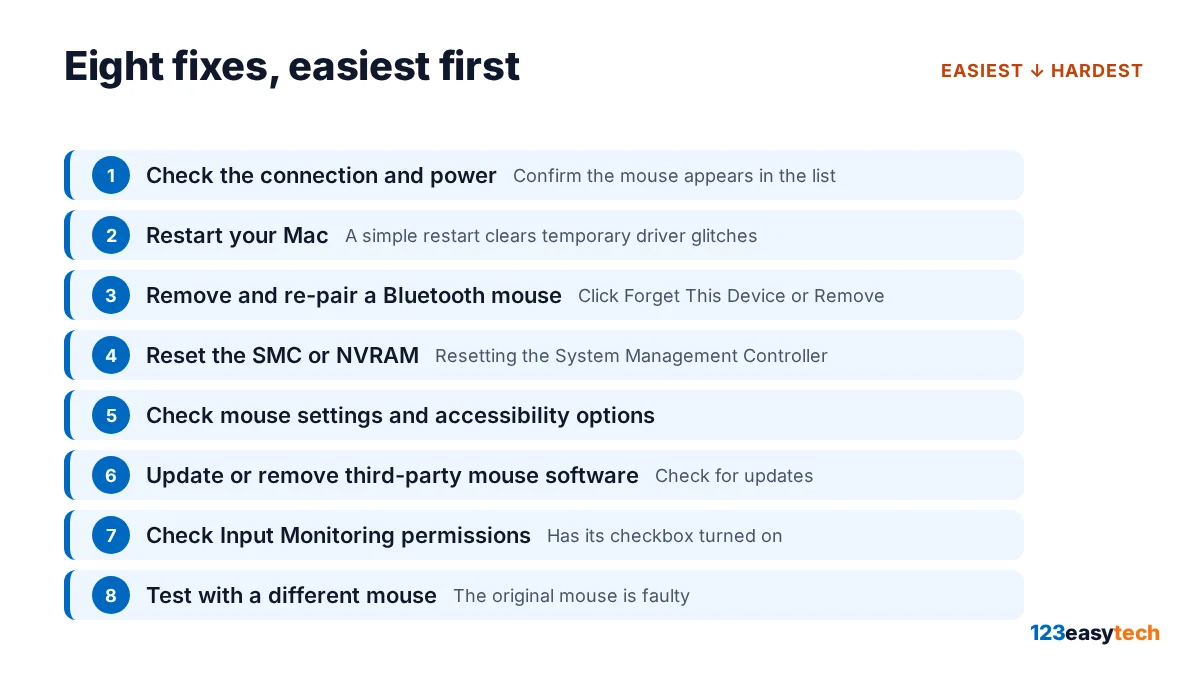
For a wireless mouse, open System Settings > Bluetooth (macOS Ventura and later) or System Preferences > Bluetooth (earlier versions) and confirm the mouse appears in the list and shows “Connected.” If it says “Not Connected,” click Connect. If the mouse doesn’t appear at all, turn it off and back on, or press its pairing button. Replace the battery if the mouse uses disposable cells, or charge it if it’s rechargeable. For a wired mouse, unplug the cable and plug it into a different USB port; try a port directly on the Mac rather than a hub.
2. Restart your Mac
A simple restart clears temporary driver glitches and re-initializes the USB and Bluetooth subsystems. Click the Apple menu and choose Restart, or if the mouse is completely unresponsive, press and hold the power button until the Mac shuts down, then press it again to start up.
3. Remove and re-pair a Bluetooth mouse
Open System Settings > Bluetooth, find your mouse in the devices list, click the i or Options button next to it, then click Forget This Device or Remove. Turn the mouse off, wait a few seconds, turn it back on and put it in pairing mode (usually by holding a button on the bottom). It should reappear in the Bluetooth list; click Connect.
4. Reset the SMC or NVRAM
For Intel-based Macs, resetting the System Management Controller (SMC) can fix USB and power issues. Shut down the Mac, then press and hold Shift + Control + Option on the left side of the keyboard and the power button at the same time for 10 seconds, then release all keys and press the power button to start up. For Macs with Apple silicon (M1, M2, M3), the SMC reset happens automatically during a normal restart. Resetting NVRAM (which stores some peripheral settings) works on both: shut down, then immediately after pressing the power button, hold Option + Command + P + R for about 20 seconds.
5. Check mouse settings and accessibility options
Open System Settings > Mouse (or System Preferences > Mouse on older macOS versions) and confirm that tracking speed is not set to the slowest position and that any button assignments look correct. Similar to how Windows lets you adjust pointer speed and button configuration, macOS provides tracking and button settings that can be accidentally changed. Then open System Settings > Accessibility > Pointer Control and make sure “Ignore built-in trackpad when mouse or wireless trackpad is present” is turned on if you want the mouse to take priority, and that no unintended alternate control method is enabled.
6. Update or remove third-party mouse software
If you installed software from Logitech, Razer or another manufacturer, open that app and check for updates. Outdated drivers are a frequent cause of pointer problems after a macOS update. If no update is available and the mouse still doesn’t work, try uninstalling the software completely (most vendors provide an uninstaller in the app’s menu or in the disk image you downloaded) and let macOS use its built-in drivers.
7. Check Input Monitoring permissions
macOS requires apps that read mouse input to have explicit permission. Open System Settings > Privacy & Security > Input Monitoring and confirm that any mouse software or utility app is listed and has its checkbox turned on. If it’s missing, you may need to reinstall the app so macOS prompts you for permission.
8. Test with a different mouse
Borrow another mouse or use the built-in trackpad if you have a MacBook. If the second mouse works immediately, the original mouse is faulty. If the second mouse also fails, the problem is in macOS settings or a system-level conflict.
When to replace it
If the mouse fails the browser test on multiple computers, or if buttons work intermittently even after re-pairing and driver updates, the hardware has likely reached the end of its life. Physical damage—a frayed cable, a cracked shell or a scroll wheel that feels loose—also points to a failed component. Wireless mice that won’t hold a charge or that disconnect every few minutes despite a fresh battery usually have a failing radio module. If you’re seeing double-click problems where one press registers as two, the mechanical switch inside has worn out.
When you’re ready to replace it, look for a mouse with a reliable switch design. Our researched picks for mice that won’t double-click focus on optical switches, which use a light beam instead of metal contacts and avoid the most common failure mode. The Razer DeathAdder V3 uses third-generation optical switches rated for 90 million clicks with no double-clicking issues (manufacturer), and it works on both Mac and PC. For a wireless option, the Logitech G PRO X SUPERLIGHT 2 has Logitech’s LIGHTFORCE hybrid switches rated for 70 million clicks (manufacturer) and connects over Logitech’s LIGHTSPEED wireless (manufacturer). If you need many programmable buttons, the Logitech G502 X PLUS offers the same hybrid switches in a wireless design with extra controls (manufacturer).
FAQ
Why is my mouse on Mac not working?
A mouse can stop working on a Mac due to Bluetooth interference, low battery, a damaged cable, outdated drivers or macOS permissions blocking input.
What to do if Mac mouse isn’t working?
Test the mouse in a browser first with our Mouse Tester, then check the connection, restart your Mac, re-pair Bluetooth, reset the SMC or NVRAM, and update or remove third-party mouse software.
Why is my USB mouse not working on MacBook Air?
A USB mouse may not work if the port is damaged, the cable is broken or macOS permissions are blocking it. Try a different USB port directly on the Mac, restart, and check System Settings > Privacy & Security > Input Monitoring for any mouse software that needs permission.
How do I reset my mouse on Mac?
For a Bluetooth mouse, open System Settings > Bluetooth, click the i next to the mouse, then click Forget This Device. Turn the mouse off and on, put it in pairing mode, and reconnect. For a wired mouse, unplug it, restart your Mac, and plug it back in.
Why does my mouse work in the browser but not in other apps on Mac?
If the mouse works in the browser test but fails elsewhere, the hardware is fine and the problem is a macOS setting, driver conflict or permissions issue. Check System Settings > Privacy & Security > Input Monitoring and update or remove third-party mouse software.
Sources
- Microsoft Support, Change mouse settings | Microsoft Support.
- Logitech Support, Computer Mice – Wireless Mouse, Bluetooth, Wired | Logitech.
- razer.com, Gaming Mice – Wired and Wireless Gaming Mouse | Razer United States.
Last updated: October 27, 2026. Researched and written by 123EasyTech Editorial.
