

You move your finger on the touchpad and the pointer doesn’t budge. Or your USB mouse worked yesterday and today it’s dead. On a laptop there are two pointing devices that can fail, and several settings can switch one off without telling you. Before you reinstall drivers or buy a new mouse, find out which part is actually broken.
Test it with our free Mouse Tester
Open the Mouse Tester in your browser. It runs on your device and doesn’t install anything. If the touchpad is dead, use the keyboard: press the Windows key, type the address, and press Enter.
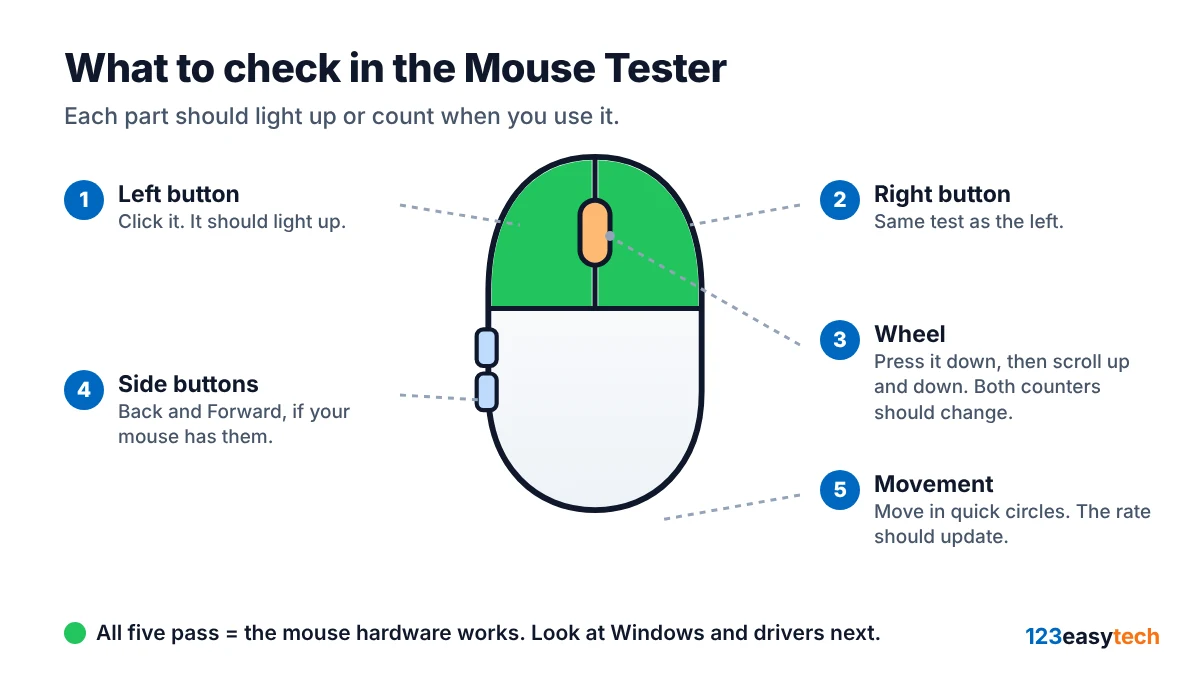
- Try the touchpad first: move your finger, then tap and click inside the test box.
- Then connect your external mouse (if you have one) and do the same: click each button, scroll the wheel, and move it in circles.
- Each button lights up when it registers, and the scroll and movement counters change.
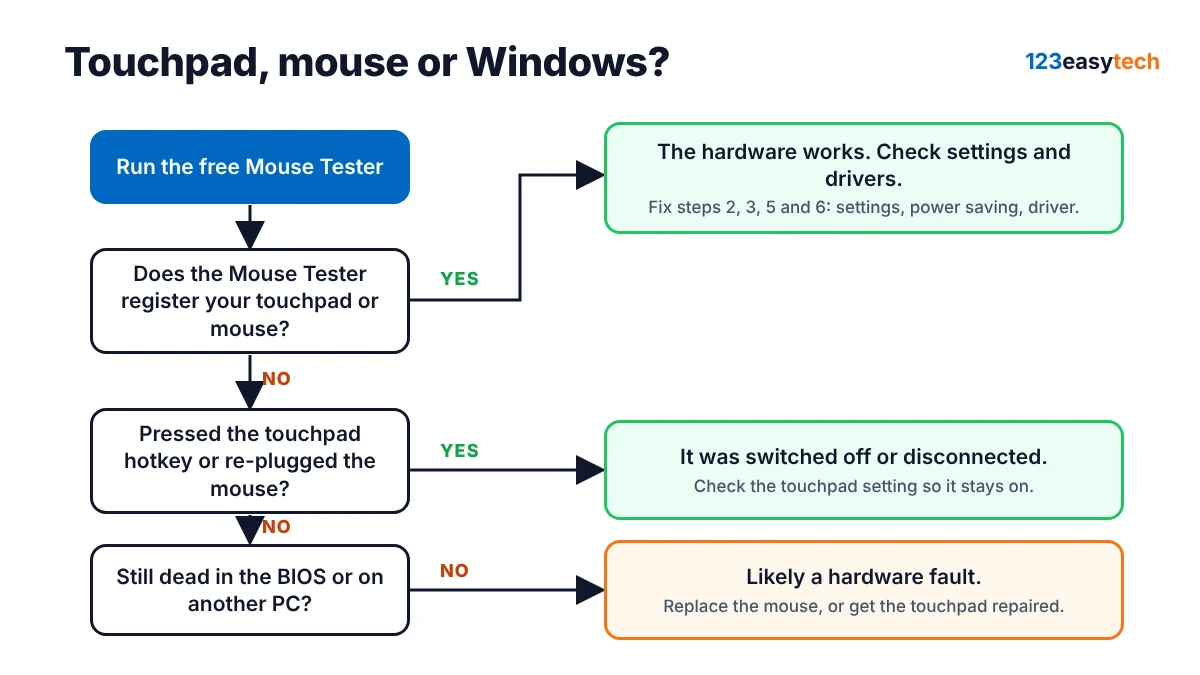
If something registers here, the hardware works, and the problem is a setting or a driver. If nothing registers from one device, work through the fixes below in order.
Why it happens
On laptops, the most common cause is a touchpad that has simply been turned off. Most laptops have a hotkey for it, and Windows has its own on/off switch. Dell also points out a less obvious cause: if “Leave touchpad on when a mouse is connected” is cleared, plugging in a mouse, or even just a wireless mouse’s USB receiver while the mouse itself is off, turns the touchpad off. Other causes are Windows powering down a USB or Bluetooth device to save battery, a damaged or outdated driver, and, more rarely, a hardware fault.
How to fix it
Tip if the touchpad is dead and you have no mouse: press Windows + I to open Settings, use Tab and the arrow keys to move around, and press Space or Enter to select. Dell’s guide uses exactly this method.
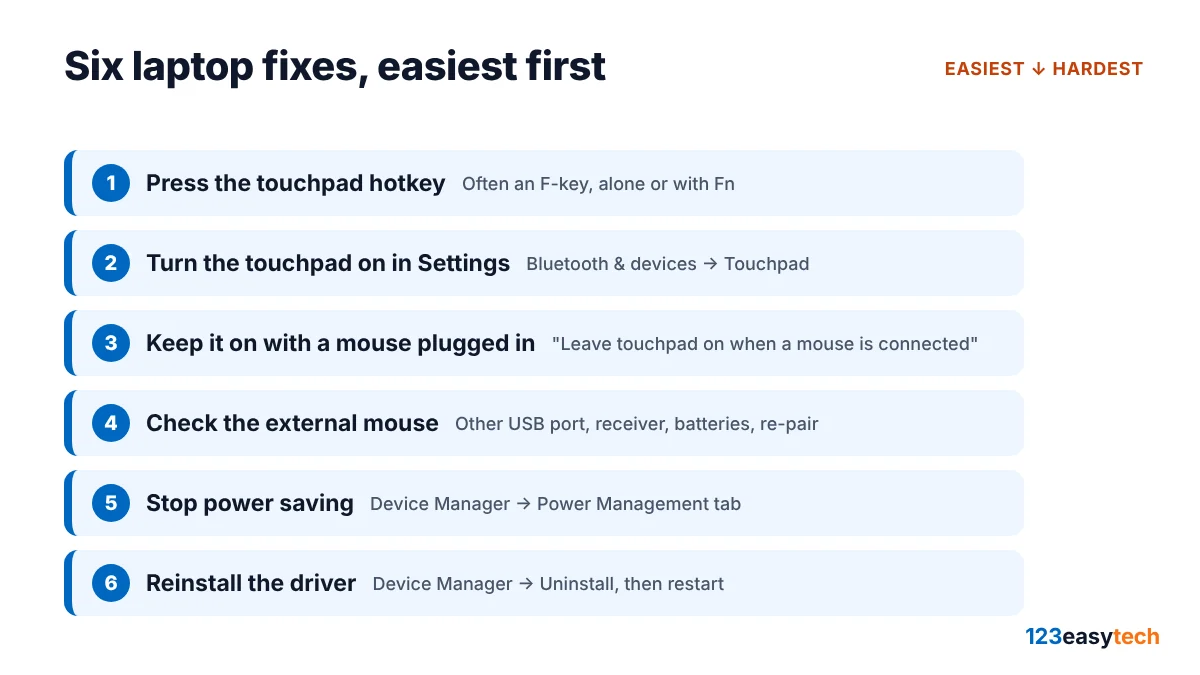
1. Press the touchpad hotkey
Many laptops have a function key that turns the touchpad on and off. On ASUS laptops it is usually F6 or F9, pressed alone or together with Fn; ASUS shows a “Touchpad is enabled” message when it switches on. Lenovo says some of its models have a dedicated shortcut and that the user guide lists it. On many HP models, double-tapping the top-left corner of the touchpad turns it off and on (according to HP’s community knowledge base). Look for a small touchpad icon on your F-keys.
2. Turn the touchpad on in Settings
Press Windows + I, go to Bluetooth & devices, then Touchpad, and make sure the Touchpad switch is On. You can also press Windows + S, type “Touchpad settings” and press Enter.
3. Keep the touchpad on when a mouse is connected
On the same Touchpad page, open the drop-down next to the switch and tick “Leave touchpad on when a mouse is connected.” If it’s cleared, the touchpad turns itself off whenever a mouse or its USB receiver is plugged in.
4. Check the external mouse
Unplug the mouse or its receiver and plug it into a different USB port, directly on the laptop rather than a hub. Use the receiver that came with that mouse, and replace the batteries. For a Bluetooth mouse, go to Settings > Bluetooth & devices > Devices, open the menu (…) next to the mouse, choose Remove device, then pair it again. Windows also has a Bluetooth troubleshooter under Settings > System > Troubleshoot > Other troubleshooters.
5. Stop Windows switching the mouse off to save power
If the mouse works and then drops out, right-click Start and open Device Manager. For a Bluetooth mouse, expand Bluetooth; for a USB mouse, expand Human Interface Devices and look at each USB Input Device. Open the device, go to the Power Management tab, and clear “Allow the computer to turn off this device to save power.”
6. Reinstall the driver
In Device Manager, find your touchpad or mouse under Mice and other pointing devices or Human Interface Devices. Select it, choose Uninstall device (with the keyboard, press Shift + F10 to open the menu), and restart. Windows reinstalls the driver when it starts. Run Windows Update too, because touchpad drivers are often delivered there. Dell adds one detail: don’t touch the touchpad while the laptop boots, because it calibrates at startup. On ASUS laptops, if the hotkey itself does nothing, ASUS recommends reinstalling the ASUS System Control Interface driver.
When it’s hardware
ASUS suggests a simple check: start the laptop into the BIOS setup screen (on ASUS, hold F2 while powering on). If the touchpad works there but not in Windows, it’s a software problem, so update the BIOS and drivers. If it doesn’t work even there, it’s likely a hardware fault and needs a repair.
Safety note: Dell warns that a touchpad that looks raised or distorted, or stops clicking, can be a sign of a swollen battery. Other signs are a laptop that wobbles on a flat table, gaps in the case, or a lid that won’t close properly. If you see these, stop using and charging the laptop and contact the manufacturer.
If the problem is your external mouse and it fails the test on more than one computer, it’s time to replace it. Our mice that won’t double-click picks focus on optical switches, which don’t wear out the way metal contacts do.
FAQ
Why did my touchpad stop working after I plugged in a mouse?
Windows can turn the touchpad off automatically when a mouse is connected. Open Settings > Bluetooth & devices > Touchpad and tick “Leave touchpad on when a mouse is connected.”
How do I turn my touchpad back on without a mouse?
Press the touchpad hotkey if your laptop has one. Otherwise press Windows + I, use Tab and the arrow keys to reach Bluetooth & devices > Touchpad, and press Space to switch it on.
My USB mouse keeps disconnecting on my laptop. What should I check?
Try another USB port directly on the laptop, use the mouse’s own receiver, and in Device Manager clear “Allow the computer to turn off this device to save power” on the device’s Power Management tab.
How do I know if my laptop touchpad is broken?
Test it in our Mouse Tester, then check it in the BIOS setup screen. If it doesn’t respond in either, the fault is most likely hardware.
Sources
- Dell Support: How to turn the touchpad on or off in Windows
- Dell Support: Touchpad troubleshooting
- Dell Support: Mouse troubleshooting
- ASUS Support: Troubleshooting touchpad problems
- Microsoft Support: Fix touchpad problems in Windows
- Microsoft Support: Bluetooth keeps disconnecting in Windows
- Lenovo Support: How to enable or disable the touchpad
- HP Community: Troubleshooting the touchpad on HP notebook PCs
Last updated: November 17, 2026. Researched and written by 123EasyTech Editorial.
